
This week we spent a focused stretch of time on one of the most hands-on parts of Segno: the annotation toolbar. The goal was simple—make it easier to mark a score without letting the controls take over the page, especially in portrait single-page mode on a tablet.
What changed
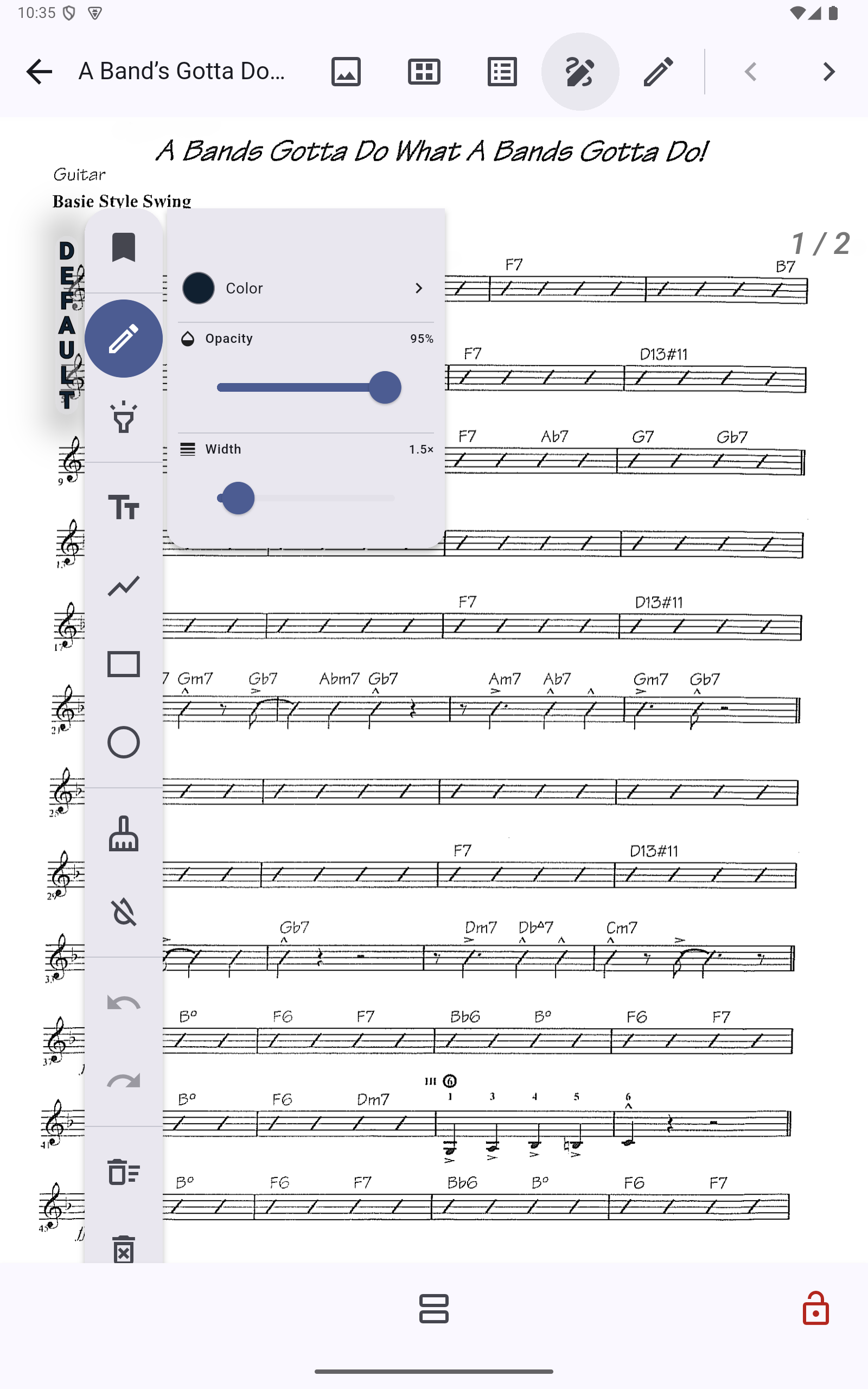
The toolbar now opens as a compact vertical palette on the tablet. The common tools are visible together—pencil, highlighter, text, line, rectangle, ellipse, erasers, undo, redo, and clear actions—while the controls beside it adapt to the selected tool.
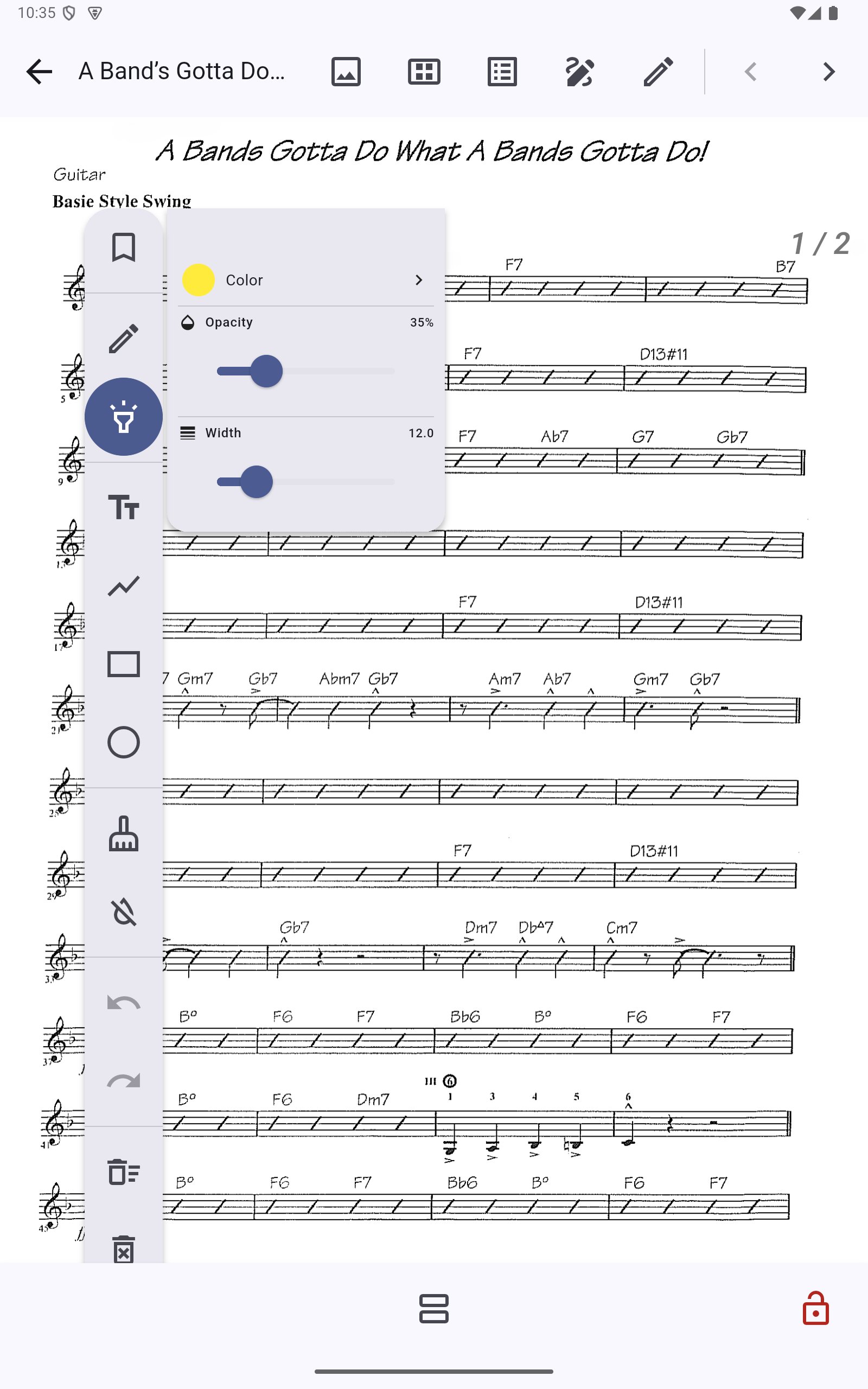
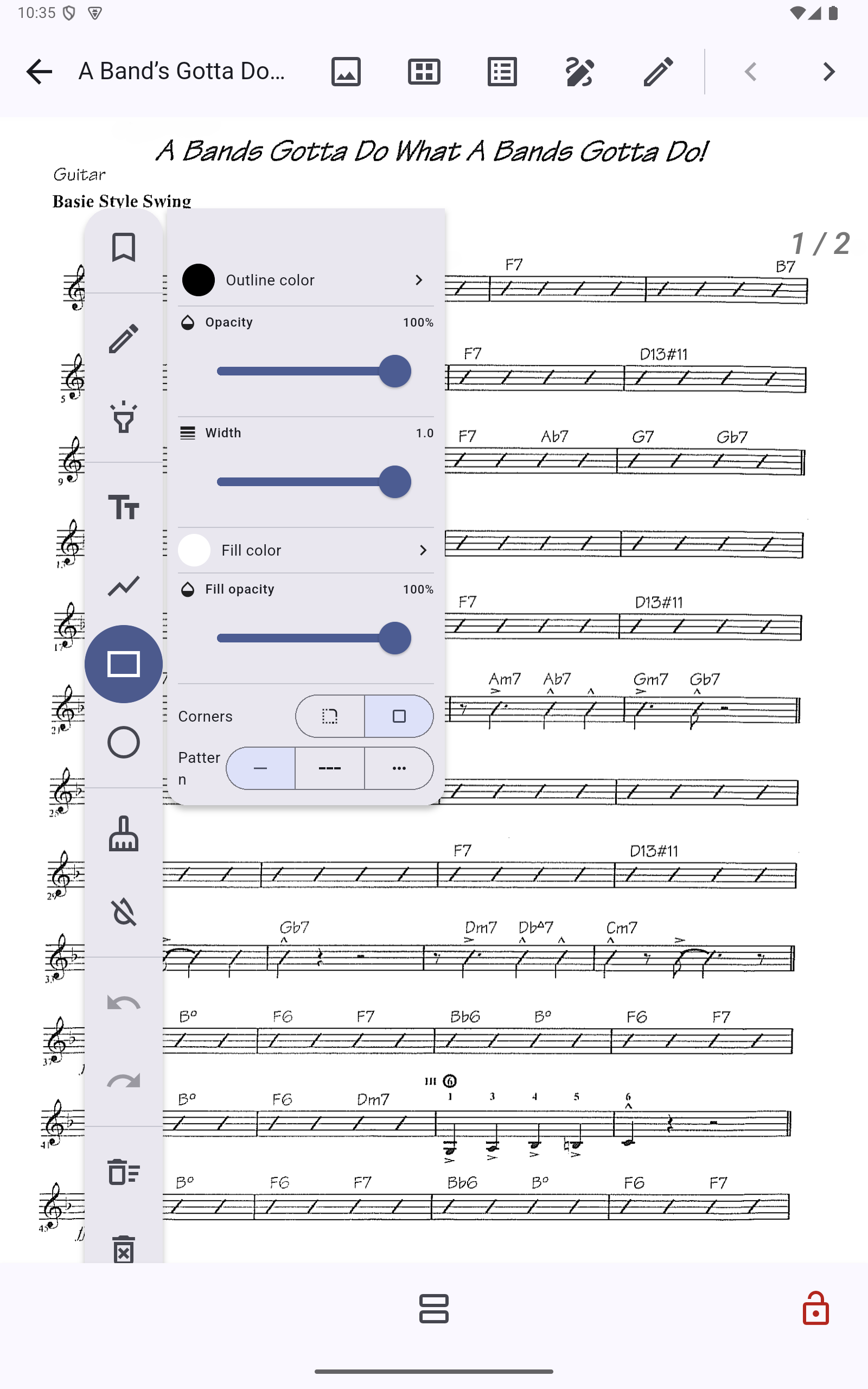
That means a pencil shows its color, opacity, and width controls. A highlighter gets its own color and width. Shapes expose outline, fill, line ends, and line patterns. We also added named tool presets, so a setup you like can be brought back without rebuilding it every time.
Presets for the way you work
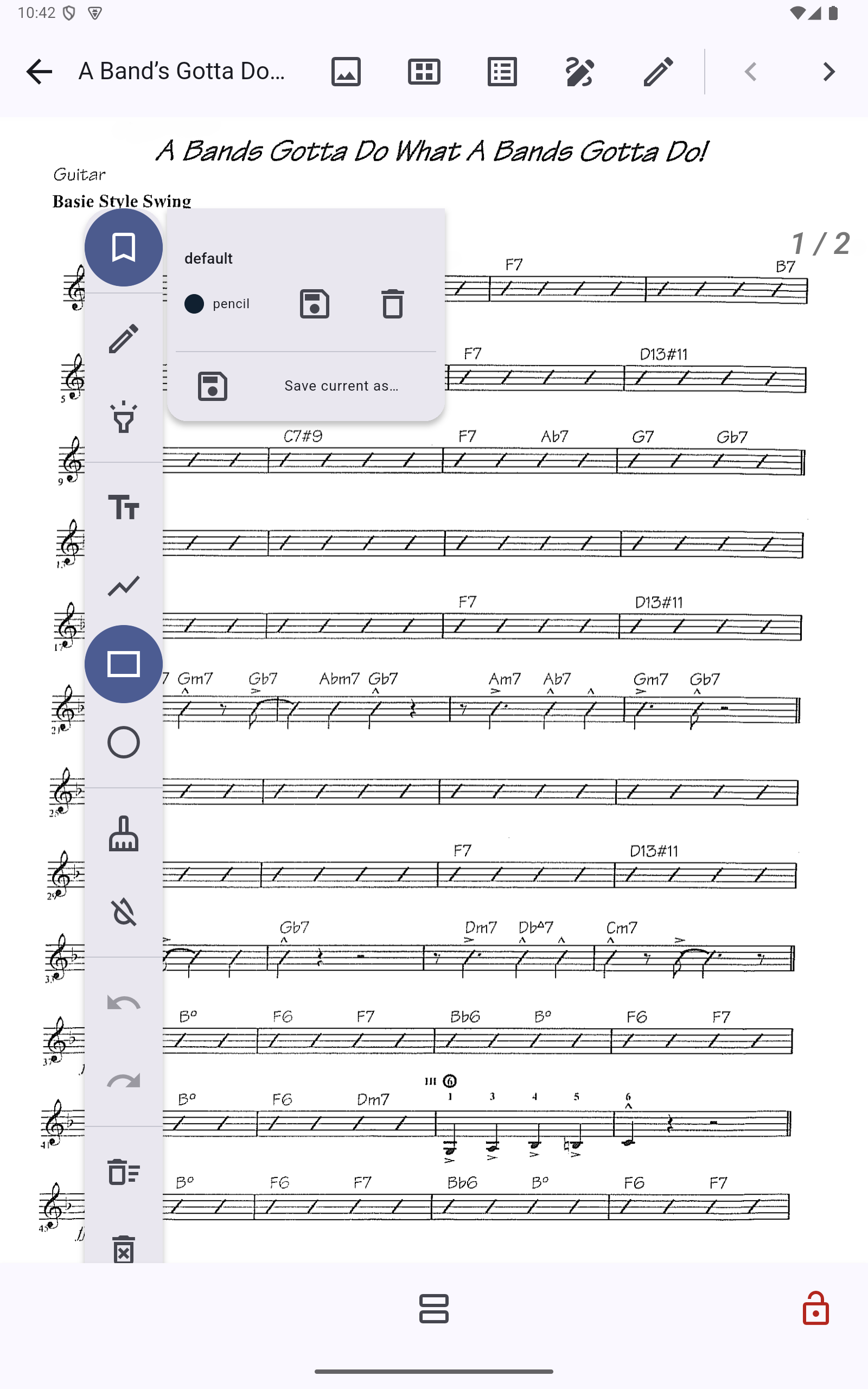
Annotation settings are personal. You may want a fine, dark pencil for detailed marks, a broad transparent highlighter for rehearsal notes, or a particular combination of outline and fill settings for shapes. Presets let you save those combinations with a name and bring them back from the toolbar whenever you need them.
Choose a preset to restore its tool and settings, or use “Save current as…” to create a new one. Existing presets can be updated or deleted, and the settings cover the details that matter for each tool, such as color, opacity, width, and shape fill.
Presets are shared across your scores. When you update one, annotations using that preset are updated everywhere, too. So if your guitar fingering is grey today but you want it blue tomorrow, changing the preset can apply that new color across all scores in one go.
What feels especially good
The best part is the relationship between the toolbar and the score. The page remains the main character, but the controls are close enough to adjust without leaving the editing flow. The same structure also scales down for narrower windows, where a toolbar that simply assumes unlimited horizontal space quickly becomes frustrating.
We also put work into the less visible details: keeping touches inside the drawer from leaking through to the score, making the drawer scroll when its controls do not fit, and keeping the tool state understandable as you move between tools.